

District Resources
The [District Resources] button (figure 1) gives teachers and school administrators access to resources linked by an administrator. The [District Resources] button is available for all subjects in CERS except the alternative subjects.
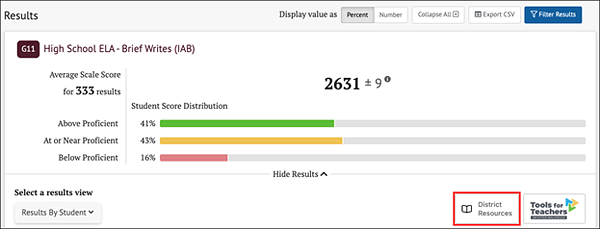
Figure 1. [District Resources] Button
View District Resources
Administrators can add, review, edit, and delete links to district resources that users access through the [District Resources] button for all of the organizations they are associated with in TOMS. This is completed from the Manage District Resources page, which is accessed by selecting the [District Resources] button on the Home Page Administrator Tools (figure 2).
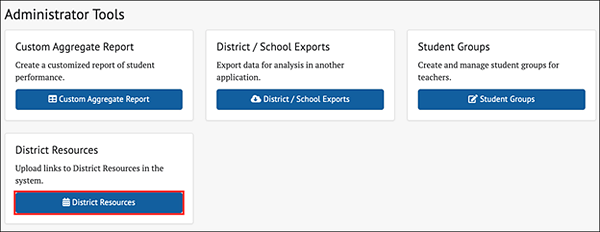
Figure 2. [District Resources] Button on the Home Page
The Manage District Resources page elements are shown in figure 3.
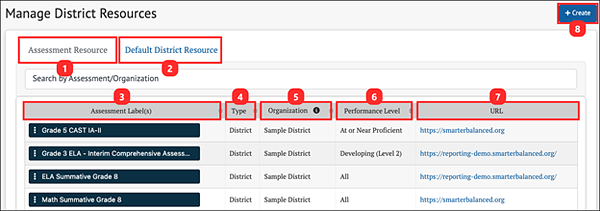
Figure 3. Manage District Resources
This page shows user uploaded district resources, with the following information:
- Assessment Resource tab: Assessment resources applied to specific assessments, as well as specific achievement levels
- Default District Resource tab: Default resources that are applied to all assessments for a district
- Assessment Label(s): Name(s) of the interim assessment with which the resource is affiliated
- Type: This is the organizational level where the link is affiliated. Options are: State, Group of Districts, District, or Group of Schools
- Organization: The name of the organization
- Performance Level: The reporting category level(s) associated with the resource
- URL: The web location of the resource
- [+Create]: Allows user to add the new resource
Creating a New District Resource Link
Administrators may add links to local or other resources into CERS for all subjects in CERS except the alternate assessments. This allows educators to access further support based on the assessment and performance or achievement levels. Selecting the [+Create] button opens the pop-up screen (figure 4).
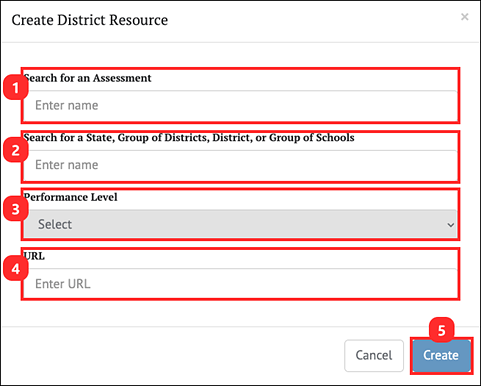
Figure 4. Create District Resource Pop-Up
- Search for an Assessment: Associates the resource with a specific assessment allowing it to display using the [District Resources] button when viewing assessment results.
- Search for a State, Group of Districts, District, or Group of Schools: Associates the resource to a district based on the user’s TOMS role.
- Performance Level: Associates the resource with a specific performance level; may select [All] to associate with all levels. When [All] is selected, the link to the resource will be available through the large [District Resource] button.
- URL: Enter the URL of the resource including the https:// or http:// prefix.
- [+Create]: Creates the new resource
Creating a New Default District Resource Link
Administrators may add a default link to local or other resources into CERS to be applied to all subjects within their district, except the alternate assessments. Selecting the [+Create] button opens the pop-up screen (figure 5).
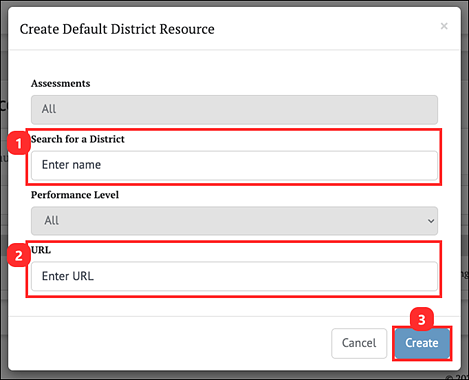
Figure 5. Create Default District Resource Pop-Up
- Search for a District: Associates the resource to a district based on the user’s TOMS role.
- URL: Enter the URL of the resource including the https:// or http:// prefix.
- [+Create]: Creates the new resource.
Edit or Delete Existing District Resources
When the three-dot icon [⋮] context menu on an Assessment Label is selected, two options are presented for that resource: Edit or Delete.
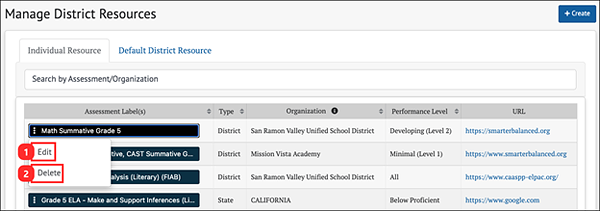
Figure 6. Resource Management Options
- [Edit]: Allows the user to edit the URL of the selected district resource
- [Delete]: Allows the user to remove the district resource from the system
Selecting [Edit] brings up a similar pop-up screen as displayed when the [+Create] button is selected, except that the menu elements are auto filled with the existing information for the selected resource. The user may then edit the URL for the resource. Selecting [Delete] removes the resource from the system.