

Literary Assistance Resources
Text-to-Speech
TTS reads on-screen text aloud for a student who may have a reading impairment. The TDS includes embedded TTS that can be turned on for a student after the student test settings in TOMS have been assigned. A supported voice pack needs to be installed on the student’s device before testing begins. (Supported voice packs are described in the next subsection.) A student testing with TTS should also have a supported headset or headphones.
A student using TTS for the practice test can log on using a supported secure browser or a Chrome, Firefox, or Edge web browser and then selecting an assessment for which TTS is available.
After configuring TTS, the student or teacher may test the functionality on a practice test administered through a supported secure browser before using it for operational testing.
Supported Voice Packs
Using TTS requires at least one voice pack to be installed on the testing device.
A number of voice packs are available for testing devices, and all voice packs are researched and tested for compatibility with the secure browsers. However, not all voice packs that come preinstalled with operating systems are approved for use with computer-based testing.
What follows is a list of the supported voice packs for students testing with TTS:
- Windows for English assessments: All built-in voice packs
- Windows for Spanish assessments: Spanish (Mexico)
- macOS built-in voice packs
- iPadOS built-in voice packs
- Chromebook built-in voice packs
- Heather Infovox iVox HQ (macOS only)
- Rosa Infovox iVox HQ (macOS only)
- Linux voice packs as listed in the Configuring Linux TTS Settings subsection
A student who needs to use an unlisted voice pack should test it with a practice test first to ensure there are no issues before its use with an operational assessment. Practice tests are available on the Practice and Training Test Site.
Selecting a Voice Pack in the Secure Browser
When a student who is using TTS starts an assessment using the desktop version of the secure browser, the secure browser searches for voice packs on the student’s device. Upon recognizing an approved voice pack, the secure browser uses the one with the highest priority. If any of the approved voice packs has been set as the default voice on the device, then that voice pack will always get the highest priority.
The mobile secure browser uses either the device’s native voice pack or a voice pack embedded in the secure browser. Additional voice packs downloaded to a mobile device are not recognized by the mobile secure browser.
Configuring Chrome TTS Settings
Before a student tests, the native TTS on Chromebooks must be disabled. Failure to do so may result in test security issues and improper functionality of embedded TTS.
Take the following steps to disable the TTS setting. Pressing [Ctrl] + [Alt] + [Z] also disables this setting.
- Open Settings.
- Select the [Accessibility] button in the left navigation panel.
- Select [Text-to-Speech] in the “Accessibility” section on the right.
- Ensure the ChromeVox toggle is set to “Off.”
Configuring Linux TTS Settings
Available Standard Voice Packs
Using table 1 and table 2 as references, install voice packs from the indicated packages—these are the supported voice packs.
| Distribution/Voice Pack | Available in Package |
|---|---|
|
kal_diphone (Kevin American English male) |
festvox-kallpc16k, festvox-kallpc8k |
|
ked_diphone (Kurt American English male) |
festvox-kdlpc16k, festvox-kdlpc8k |
|
el_diphone (Castilian Spanish male) |
festvox-ellpc11k |
| Distribution/Voice Pack | Available in Package |
|---|---|
|
cmu_us_awb_arctic_hts (Scottish English male) |
festvox-awb-arctic-hts |
|
cmu_us_bdl_arctic_hts (American English male) |
festvox-bdl-arctic-hts |
|
cmu_us_jmk_arctic_hts (Canadian English male) |
festvox-jmk-arctic-hts |
|
kal_diphone (Kevin American English male) |
festvox-kal-diphone |
|
ked_diphone (Kurt American English male) |
festvox-ked-diphone |
- Install Festival for TTS:
- Ubuntu: sudo apt-get install festival
- Fedora: yum install festival
- Install Sound eXchange (SoX) for TTS:
- Ubuntu: sudo apt-get install sox
- Fedora: yum install sox
Piper TTS for Fedora
Piper TTS is an open-source, TTS engine for Linux that is supported by the secure browser for Linux.
Take the following steps to install Piper TTS for Fedora using an .rpm package. These instructions may vary for an individual Fedora version.
- Navigate to the CAASPP and ELPAC Secure Browsers website.
-
Select the [Linux] tab and then select the [Download Piper TTS] button for Fedora (figure 1).

Figure 1. [Download Piper TTS] for Fedora button
- Locate the piper.rpm installation package in the Downloads folder.
- Right-click to open the context menu and then select Open in Terminal. The terminal window opens.
- Type sudo yum install -y ./piper.rpm into the window and press [Enter].
- Enter the password for the sudo user and then press [Enter] again.
Piper voice packs can be downloaded from the “Available to Install” section of the Piper TTS Tool landing page.
Take the following steps to uninstall Piper TTS for Fedora:
- Open the Terminal.
- Enter sudo yum remove -y piper.rpm and press [Enter].
- Enter the password for the sudo user and then press [Enter] again.
If TTS speech sputters and does not speak smoothly on newly installed Fedora versions, run the following commands to resolve the issue. These commands switch from PipeWire to PulseAudio as the main sound server and related components.
- sudo dnf swap --allowerasing pipewire-pulseaudio pulseaudio
- sudo dnf swap wireplumber pipewire-media-session
Piper TTS for Ubuntu
Piper TTS is an open-source, TTS engine for Linux that is supported by the secure browser for Linux.
Take the following steps to install Piper TTS for Ubuntu using a .deb package. These instructions may vary for an individual Fedora version.
- Navigate to the CAASPP and ELPAC Secure Browsers website.
-
Select the [Linux] tab and then select the [Download Piper TTS] button for Ubuntu (figure 2).

Figure 2. [Download Piper TTS] for Ubuntu button
- Locate the piper.deb installation package in the Downloads folder.
- Right-click to open the context menu and then select Open in Terminal. The terminal window opens.
- Type sudo apt install -y ./piper.deb into the window and press [Enter].
- Enter the password for the sudo user and then press [Enter] again.
Piper voice packs can be downloaded from the “Available to Install” section of the Piper TTS Tool landing page.
Take the following steps to uninstall Piper TTS for Ubuntu:
- Open the Terminal.
- Enter sudo apt remove -y piper.deb and press [Enter].
- Enter the password for the sudo user and then press [Enter] again.
Configuring macOS VoiceOver TTS Settings
The TTS feature is available on supported macOS versions. macOS devices are typically shipped with at least one default voice pack. Many of these default voice packs are recognized by the secure browser.
Before launching the secure browser, VoiceOver voice settings, such as the voice profile and speaking rate, can be adjusted on the basis of each student’s individual needs. A student should take a practice test using VoiceOver to determine whether these settings need to be adjusted.
Take the following steps to adjust VoiceOver voice settings.
Open the VoiceOver Utility
-
Choose the Apple menu ➔ System Settings (figure 3). The menu item might also be called System Preferences.
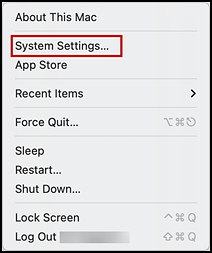
Figure 3. Apple menu
-
Select [Accessibility] from the left navigation panel (indicated in figure 4).
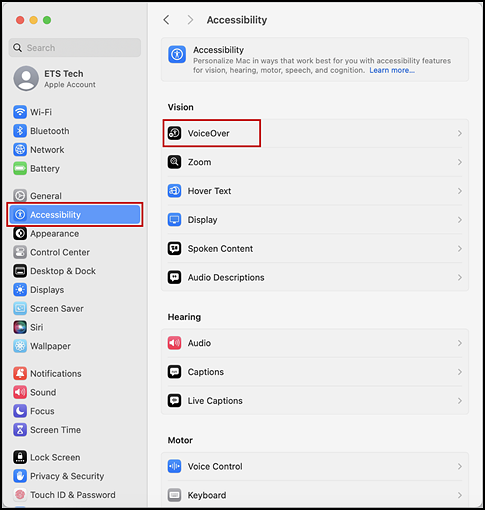
Figure 4. VoiceOver option in the macOS System Settings Accessibility panel
- Select [VoiceOver] in the “Vision” section on the right side of the screen (also indicated in figure 4).
-
Open the VoiceOver Utility by selecting the [Open VoiceOver Utility] button (figure 5).
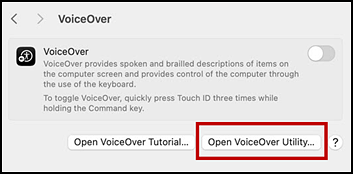
Figure 5. Open the VoiceOver Utility
Assign a Primary Voice
- Open the VoiceOver Utility.
-
In the left panel, select [Speech] (shown in figure 6).
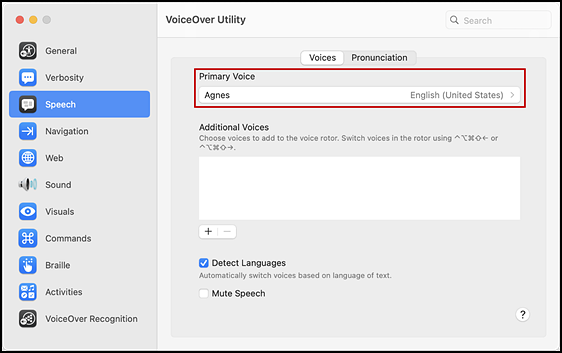
Figure 6. [Voices] tab in the Speech panel of the VoiceOver Utility screen
- On the [Voices] tab, select a voice profile from the Primary Voice drop-down list (indicated in figure 6).
-
To adjust the voice rate, select the voice and then adjust the Rate slider (figure 7) to the desired rate of speed; the lower the rate, the slower the words are read aloud.
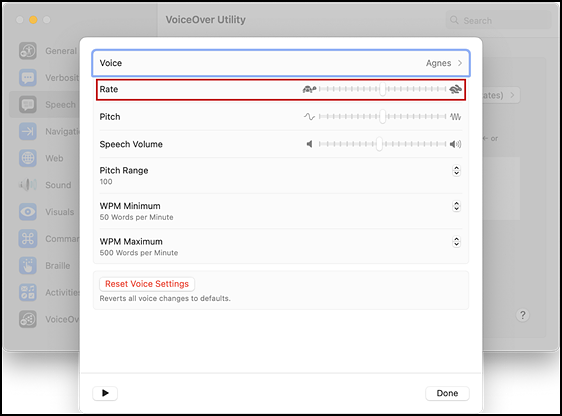
Figure 7. Rate slider in the Voice settings of the VoiceOver Utility screen
Set a Shortcut Through Accessibility Settings
Before testing with VoiceOver, set its shortcut. This setting allows the student to quickly enable VoiceOver from the Accessibility Shortcuts window by pressing [Command] (⌘) + [Option] + [F5] and then selecting VoiceOver.
-
Choose the Apple menu ➔ System Settings (figure 8) to open the System Settings screen. The menu item might also be called System Preferences.
Figure 8. Apple menu
-
Select [Accessibility] from the left navigation panel (shown in figure 9).
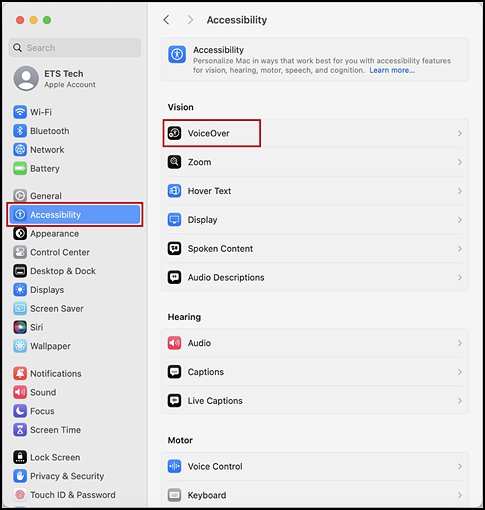
Figure 9. VoiceOver option in the macOS System Settings Accessibility panel
- Select [VoiceOver] in the “Vision” section on the right side of the screen (also indicated in figure 9).
-
Mark the VoiceOver checkbox (indicated in figure 10).
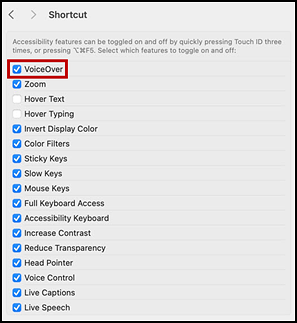
Figure 10. Shortcut option in the macOS System Settings Accessibility panel
Configuring Windows TTS Settings
The TTS resource is available on Windows versions as listed on the CAASPP and ELPAC Secure Browsers website. Windows devices are typically shipped with at least one default voice pack. Many of the default voice packs are recognized by the secure browser. The selections made here can also impact STT.
Take the following steps to configure Windows TTS settings:
- Type settings in the Search field on the taskbar or the Windows Start menu and then press [Enter] (or select its link).
-
Open the speech resource in the Windows settings by selecting [Time & language] in the left panel and then selecting the [Speech] link on the right (figure 11).
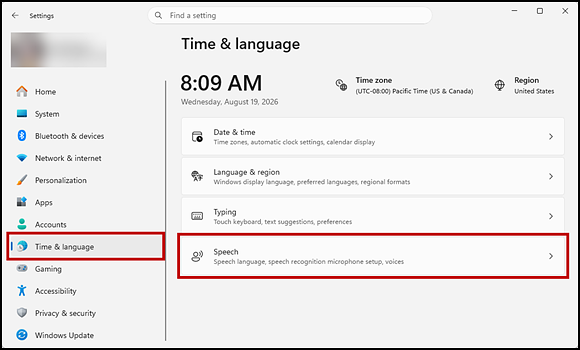
Figure 11. [Speech] link in the Windows Settings screen
- In the Speech interface, configure default TTS preferences (figure 12).
- Speech language: Choose a language for the system to use.
- Voices: If multiple voice packs are available, select the default voice.
- Select the [Preview voice] button to hear a sample of the voice and determine whether the selected voice requires a rate adjustment.
- Voice speed: If necessary, adjust the voice speed. Drag the slider to make the voice speak slower or faster. To listen to the rate, select the [Preview voice] button.
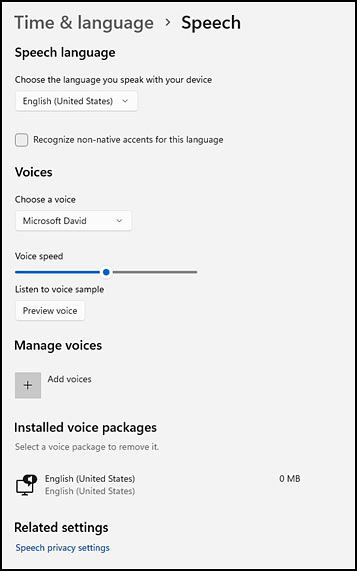
Figure 12. Default TTS preferences in Windows
- Select the [Speech privacy settings] link and toggle it to “Off” to ensure that Microsoft’s online speech recognition is not used.
Speech-to-Text
STT technology transcribes a student’s spoken words into text for responses to test questions in the TDS. A student with the appropriate accommodations may use STT assistive technology while testing. It is recommended that a student who has been assigned this resource use the embedded STT resources in the TDS, which can be used without an external application. The TDS currently supports several non-embedded STT applications; refer to the list in table 3 for the software that has been tested with the TDS.
This embedded resource can be tracked by the CAASPP or ELPAC programs when gathering data about students’ resource use.
A student using STT technology will need to use a headset with a microphone while testing. Any wired headset with a 3.5 mm or USB connection should be compatible.
After configuring an STT application, the student should test that application on a practice test administered through a supported secure browser before using it for operational testing.
Table 3 lists STT applications that have been tested with the TDS.
| STT Technology | Supported Versions | OS Requirements | Additional Details |
|---|---|---|---|
|
Dragon NaturallySpeaking Home & Individual Professional—Windows |
|
|
|
|
|
|
|
|
|
|
|
|
|
|
Configuration Guidelines for STT Applications
Some applications listed in table 3 require additional configuration to prepare for computer-based testing. Necessary configurations are described in this subsection. Some applications send data to the cloud for processing by default. Where noted, this feature should be disabled by the TA or TE to ensure the security of test data.
After an application is configured, CAI strongly recommends testing that application on a practice test administered through the secure browser before using it for operational testing.
Dragon NaturallySpeaking Home or Professional Individual for Windows
Take the following steps to configure Dragon NaturallySpeaking for student testing:
-
Open the Options dialog box presented in figure 13 by accessing the Tools drop-down list on the DragonBar and then selecting the Options item.
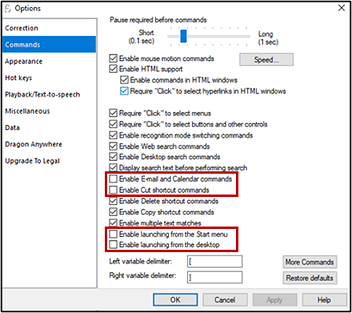
Figure 13. Dragon [Commands] tab in the Options dialog box
- On the [Commands] tab, uncheck the following boxes, as indicated in figure 13:
- Enable E-Mail and Calendar commands
- Enable Cut shortcut commands
- Enable launching from the Start menu
- Enable launching from the desktop
-
On the [Miscellaneous] tab (figure 14), uncheck the Use the Dictation Box for unsupported applications box.
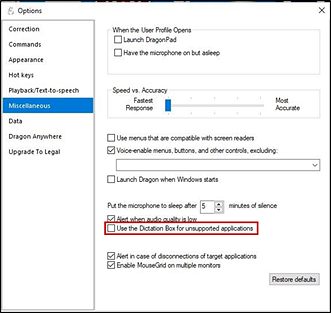
Figure 14. Dragon [Miscellaneous] tab in the Options dialog box
-
Open the Administrative Settings dialog box presented in figure 15 by accessing the Tools drop-down list on the DragonBar and then selecting the Administrative Settings item.
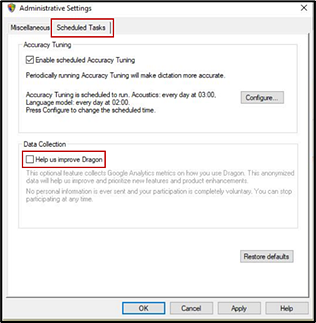
Figure 15. Dragon [Scheduled Tasks] tab in the Administrative Settings dialog box
- On the [Scheduled Tasks] tab (indicated in figure 15), uncheck the Help us improve Dragon box (also indicated in figure 15).
- Dragon 15 users should uncheck the Enable scheduled Data Collection box.
Setting Up User Profiles for a Student
Dragon NaturallySpeaking requires each student to use a specific user profile that is set for each student before testing. When creating a profile, the student’s age range, language, and accent can be selected, and the audio input devices can be set. The student will then read aloud prompts that Dragon NaturallySpeaking uses to learn the student’s voice.
After creating one or more profiles, the [Profiles] button can be selected in the Dragon toolbar. Selecting [Open User Profile…] switches between user profiles (refer to figure 16). Refer to the Dragon NaturallySpeaking—Windows website for more information about creating a user profile.
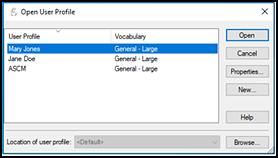
Figure 16. Dragon NaturallySpeaking—Open User Profile
Read&Write for Windows
Read&Write has an Exam Mode that can be used to turn off features for a single student on the testing device. When Exam Mode is enabled, the student will have access to only the selected features on the toolbar and certain speech settings, including voice selection, speed, pitch, and Speak As I Type; the full settings menu will not be accessible.
Take these steps to use Exam Mode; refer also to Using Exam Mode in Read&Write for Windows.
- Open Read&Write.
- Select the [Settings] button.
- Select the [Show more settings] link.
- Type adminsettings in the Find a Setting field.
- Enter and confirm a password to grant administrator access on this computer; select the [OK] button. (This username and password are associated with the administrative account for the user’s Read&Write subscription.)
- Select the [Select your features] tab and then select which feature(s) to enable on the student’s toolbar.
- Select the Use Exam Mode now toggle to start Exam Mode.
- Close the Read&Write menu to start the assessment.
Windows Voice Access
Before testing day, the Windows built-in Voice Access application must be set up on each testing device that will be used by a student who requires STT. The application can be set up by opening Start ➔ Settings ➔ Accessibility ➔ [Speech]; make sure the Voice Access toggle is set to On. Refer to the Microsoft topic Get started with voice access for detailed instructions for setting up and using Voice Access.
On the day of testing, the student using this STT should launch the secure browser (with permissive mode enabled), enter the assessment, and then launch Voice Access. This will allow the secure browser to recognize the software and permit the student to proceed through the assessment.
While Voice Access is processing speech, the testing site may slow down. If transcription is not needed for testing, make sure Voice Access is not listening to prevent any slowness from interfering with test performance.
WordQ+SpeakQ (WordQ5)
To minimize security risks, WordQ+SpeakQ—also known as WordQ5—includes an Exam Mode feature, which can be enabled through the application’s settings. Note the following about Exam Mode:
- It must be set for a minimum of 1 hour and a maximum of 12 hours.
- Exam Mode may not eliminate all security risks.
- Once Exam Mode has been set, it cannot be disabled until the configured time has run out.
Take the following steps to turn on Exam Mode and set the timer:
- Open WordQ+SpeakQ.
- Select the [Options] icon.
- Select [Exam Mode]; the EXAM MODE pop-up window appears.
- Set the exam time limit in the Exam Mode time limit field at the bottom of the window.
- Check or uncheck the Word usage examples and Single words added by the user, including topic words boxes to enable or restrict these features.
Word Completion
Word completion applications, which use predictive text technology, will allow a student to begin writing a word when responding to a test item and let the student choose from a list of single words that have been predicted from word frequency and syntax rules. The TDS uses the Co:Writer word completion tool, which is supported on all devices for most content areas, with the following exceptions:
- The on-screen equation editors in mathematics assessments do not work with word completion on Windows and MacOS devices.
- A student should use an external keyboard for word completion to function correctly in iPadOS.
Table 4 lists third-party word completion applications that have been tested with the TDS.
| Predictive Text Technology | Supported Versions | OS Requirements | Additional Details |
|---|---|---|---|
|
|
|
|
|
|
|
Configuration Guidelines for Word Completion Applications
Read&Write for Windows
Read&Write has an Exam Mode that can be used to turn off features for a single student on the testing device, although not for macOS. When Exam Mode is enabled, the student will have access to only the selected features on the toolbar. For a student requiring word completion, Word Prediction should be enabled. Read&Write for Windows also includes TTS and STT (talk and type) features, which should be enabled only for a student with the proper accommodation settings.
Take these steps to use Exam Mode; refer also to Using Exam Mode in Read&Write for Windows.
- Open Read&Write as the student who is testing.
- Select the [Settings] button in the upper-right corner of the screen.
- Select the [Show more settings] link.
- Type adminsettings in the Find a Setting field.
- Enter and confirm a password to grant administrator access on this computer; select the [OK] button. (This username and password is associated with the administrative account for the user’s Read&Write subscription.)
- Select the [Select your features] tab and then select which feature(s) to enable on the student’s toolbar.
- Select the Use Exam Mode now toggle to start Exam Mode.
- Close the Read&Write menu to start the exam.
WordQ+SpeakQ (WordQ5)
To minimize security risks, WordQ+SpeakQ (WordQ5) includes an Exam Mode feature, which can be enabled through the application’s settings. Note the following about Exam Mode:
- It must be set for a minimum of 1 hour and a maximum of 12 hours.
- Exam Mode may not eliminate all security risks.
- Once Exam Mode has been set, it cannot be disabled until the configured time has run out or the device has been rebooted.
Take the following steps to turn on Exam Mode and set the timer:
- Open WordQ+SpeakQ (WordQ5).
- Select the [Options] icon.
- Select [Exam Mode]; the EXAM MODE pop-up window appears.
- Set the exam time limit in the Exam Mode time limit field at the bottom of the window.
- Check or uncheck the Word usage examples and Single words added by the user, including topic words boxes to enable or restrict these features.