

Auditory Assistance Resources
Disabling Volume Reduction in Windows
A feature in Windows automatically lowers or mutes the volume of some applications if Windows detects audio recording. Take the following steps to disable volume reduction:
- Right-click the [Sound] speaker [
 ] icon in the taskbar and select Sound Settings from the pop-up list.
 -
Scroll down to the “Advanced” section and then select the [More sound settings] link. The Sound interface will open (figure 1).
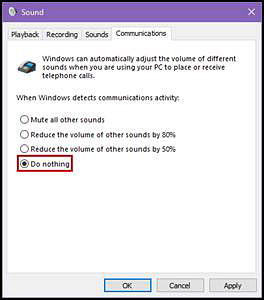
Figure 1. Sound interface
- Select the [Communications] tab.
- Select the Do nothing radio button, which is indicated in figure 1. (By default, the option to Reduce the volume of other sounds by 80% is selected.)
- Select the [OK] button.