

Test Completion Rates Option
The Test Completion Rates Report summarizes the number and percentage of students who have started or completed an assessment. This report can be generated by first selecting the Test Completion Rates option from either the Home Page Dashboard screen (indicated in figure 1) or the Test Progress Reports drop-down list.

Figure 1. Test Completion Rates option in the Test Progress Reports drop-down list
Step 1. Report Criteria
The “Report Criteria” section of the Test Completion Rates screen, shown in figure 2, provides the fields used to generate the test completion rates for a specific assessment.
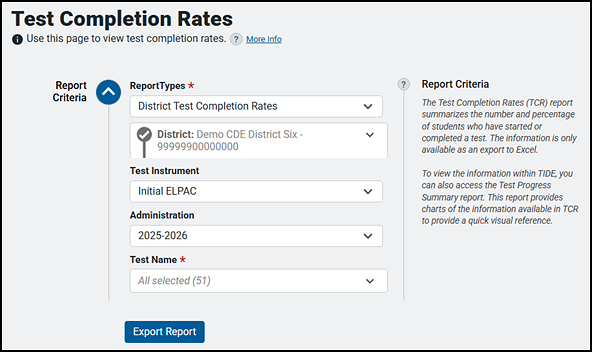
Figure 2. Test Completion Rates report options
The essential fields in the “Report Criteria” section are as follows:
- Report Types—This option indicates an entity, either LEA (district) or school.
- District—This option is only applicable for users who are associated with more than one LEA. For most users, the LEA with which the user is associated in TOMS will already be selected. This field, which is indicated by an asterisk, is required.
- School (not shown)—This option is only applicable for users, such as LEA-level users, who are associated with more than one school. For most users, the school with which the user is associated in TOMS will already be selected. Users associated with multiple schools will have additional values (that is, schools) from which to select. Users can filter results by typing part of or the complete school name or school ID in the Search field. This field, which is indicated by an asterisk, is required.
- Test Instrument—Select the test type from the Test Instrument drop-down list, which displays available assessments, which can include the following:
- CAA ELA & Math
- CAA Science
- CAST
- CAST Interim
- CSA
- ELPAC Interim
- Initial Alternate ELPAC
- Initial ELPAC
- Smarter IAB (for the interim assessment)
- Smarter ICA (for the interim assessment)
- Smarter Summative (ELA and mathematics; computer-based and PPT)
- Summative Alternate ELPAC
- Summative ELPAC
- Administration—This option allows for the selection of the current test administration year, which is the only option.
- Test Name—This option enables the selection of one or all of the test names from which to generate a report.
Step 2. Generate the Report
Refer to the Column Definitions subsection in the Test Completion Rates Reports section for a description of the columns in the Excel or CSV reports.
-
Generate the report by selecting the [Export Report] button (figure 3). This will create the report in an Excel spreadsheet that is saved to a default “downloads” folder.

Figure 3. [Export Report] button
- Update the report using different criteria by following the previous steps.